试用账户申请 · 应用安装 · 测试设备注册 说明
Trial Account · App Installation · Test Device Registration
Pendaftaran Akun Uji Coba · Instalasi Aplikasi · Registrasi Perangkat Uji Coba
การลงทะเบียนบัญชีทดลอง · การติดตั้งแอป · การลงทะเบียนอุปกรณ์ทดลอง
面向 StarHotel CMS 试用用户的完整操作指引
Complete walkthrough for StarHotel CMS trial users
Panduan lengkap untuk pengguna uji coba StarHotel CMS
คู่มือทีละขั้นตอนสำหรับผู้ใช้ทดลอง StarHotel CMS
适用范围:StarHotel CMS 试用用户(Trial)。本文档覆盖三个步骤: ① 申请试用账户;② 在 Android 电视 / 机顶盒(STB)上安装 PMS 与 Hotel 两个 APK;③ 在 CMS 后台注册测试设备和编辑酒店展示页。
Scope: For StarHotel CMS trial users. This guide covers three steps: ① Apply for a trial account; ② Install the PMS and Hotel APKs on an Android TV / set-top box (STB); ③ Register test devices and edit the hotel showcase page in the CMS.
Cakupan: Untuk pengguna uji coba StarHotel CMS. Panduan ini mencakup tiga langkah: ① Ajukan akun uji coba; ② Pasang APK PMS dan Hotel di Android TV / set-top box (STB); ③ Daftarkan perangkat uji coba dan sunting halaman showcase hotel di CMS.
ขอบเขต: สำหรับผู้ใช้ทดลอง StarHotel CMS คู่มือนี้ครอบคลุมสามขั้นตอน: ① ยื่นขอบัญชีทดลอง ② ติดตั้ง PMS และ Hotel APK บน Android TV / กล่องรับสัญญาณ (STB) ③ ลงทะเบียนอุปกรณ์ทดลองและแก้ไขหน้าโชว์เคสโรงแรมใน CMS
⚠️ 最重要的一条规则(务必先读)
⚠️ The most important rule (read first)
⚠️ Aturan paling penting (baca dulu)
⚠️ กฎที่สำคัญที่สุด (อ่านก่อน)
Property 名称(酒店名称)必须满足以下三点,否则 APK 与后台无法对应:
The Property name (hotel name) must satisfy all three points below, otherwise the APK and the backend will not match:
Nama Properti (nama hotel) harus memenuhi tiga poin berikut, jika tidak APK dan backend tidak akan cocok:
ชื่อ Property (ชื่อโรงแรม) ต้องเป็นไปตามสามข้อต่อไปนี้ มิฉะนั้น APK และแบ็กเอนด์จะไม่ตรงกัน:
- 必须是英文;
- 不能包含空格和特殊字符(只允许英文字母和数字);
- 必须与 APK 应用中设置的“酒店名称”完全一致(大小写、拼写都要一模一样)。
- Must be in English only;
- Must contain no spaces or special characters (only English letters and digits);
- Must be exactly identical to the “hotel name” set inside the APK (same case and spelling, character for character).
- Hanya boleh menggunakan bahasa Inggris;
- Tidak boleh mengandung spasi atau karakter khusus (hanya huruf dan angka Inggris);
- Harus persis sama dengan "nama hotel" yang diatur di dalam APK (huruf besar/kecil dan ejaan harus sama persis).
- ต้องเป็นภาษาอังกฤษเท่านั้น;
- ต้องไม่มีช่องว่างหรืออักขระพิเศษ (มีได้เฉพาะตัวอักษรและตัวเลขภาษาอังกฤษ);
- ต้องตรงกับ "ชื่อโรงแรม" ที่ตั้งไว้ใน APK ทุกประการ (ตัวพิมพ์เล็ก/ใหญ่และการสะกดต้องเหมือนกันทุกตัวอักษร).
一、试用账户申请(两步)
1. Trial Account Application (Two Steps)
1. Pendaftaran Akun Uji Coba (Dua Langkah)
1. การลงทะเบียนบัญชีทดลอง (สองขั้นตอน)
入口
Entry
Entri
การเข้าใช้งาน
注册页:https://premiumhotel.hitecflow.com/register.html
Registration page: https://premiumhotel.hitecflow.com/register.html
Halaman pendaftaran: https://premiumhotel.hitecflow.com/register.html
หน้าลงทะเบียน: https://premiumhotel.hitecflow.com/register.html
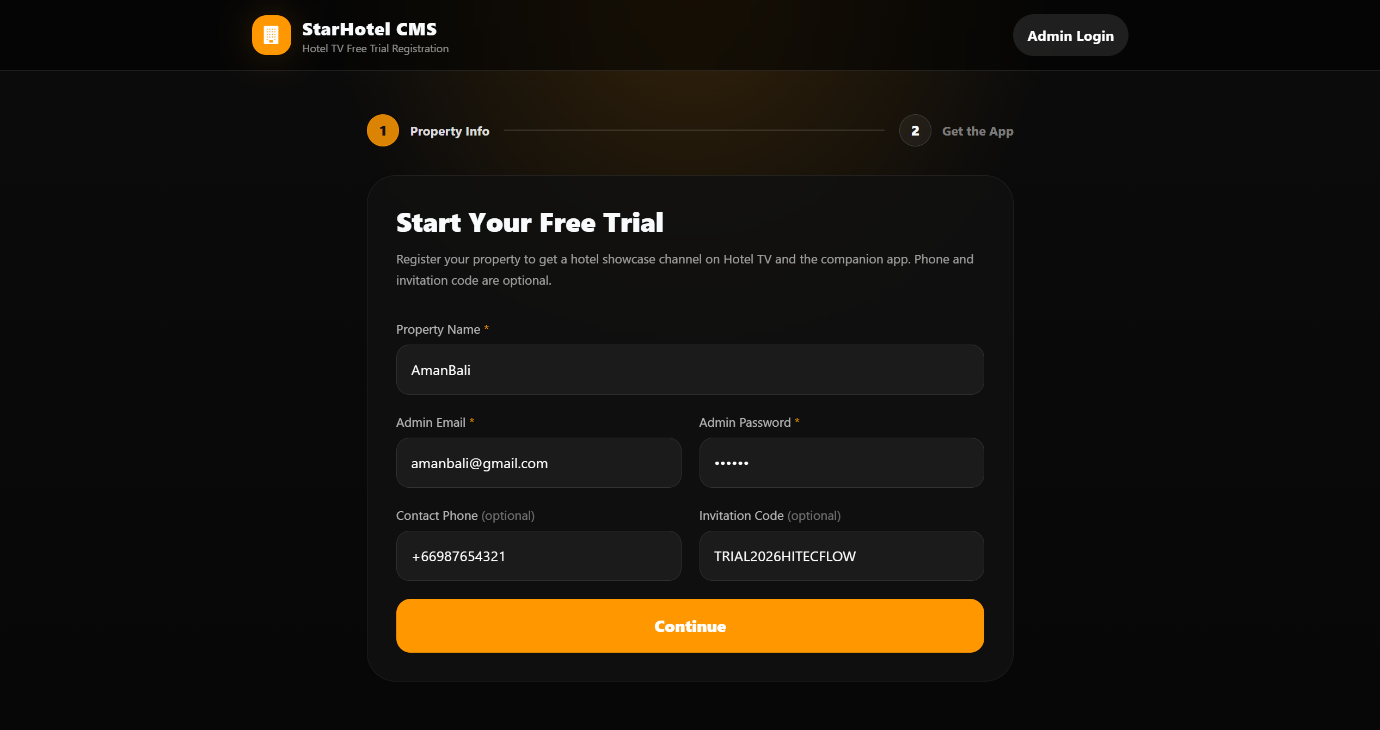
1第一步:填写信息
1Step 1: Fill in the information
1Langkah 1: Isi informasi
1ขั้นตอนที่ 1: กรอกข้อมูล
| 字段 | 必填 | 说明 | ||||||
|---|---|---|---|---|---|---|---|---|
| Field | Required | Description | ||||||
| Kolom | Wajib | Keterangan | ||||||
| ฟิลด์ | จำเป็น | คำอธิบาย | ||||||
| Property Name | ✅ 必填 | ✅ Required | ✅ Wajib | ✅ จำเป็น | 酒店/物业的英文名称。不能含空格和特殊字符,且必须与 APK 内的酒店名称完全一致(见上方规则)。 | English name of the hotel/property. No spaces or special characters, and must exactly match the hotel name inside the APK (see rule above). | Nama Inggris hotel/properti. Tanpa spasi atau karakter khusus, dan harus persis cocok dengan nama hotel di dalam APK (lihat aturan di atas). | ชื่อภาษาอังกฤษของโรงแรม/ทรัพย์สิน ต้องไม่มีช่องว่างหรืออักขระพิเศษ และต้องตรงกับชื่อโรงแรมใน APK ทุกประการ (ดูกฎด้านบน) |
| Admin Email | ✅ 必填 | ✅ Required | ✅ Wajib | ✅ จำเป็น | 该 Property 的管理员登录邮箱,用于登录 CMS 后台。 | The admin login email for this Property, used to sign in to the CMS. | Email login admin untuk Properti ini, digunakan untuk masuk ke CMS. | อีเมลเข้าสู่ระบบแอดมินสำหรับ Property นี้ ใช้เข้าสู่ระบบ CMS |
| Admin Password | ✅ 必填 | ✅ Required | ✅ Wajib | ✅ จำเป็น | 管理员密码,至少 6 位。 | Admin password, at least 6 characters. | Kata sandi admin, minimal 6 karakter. | รหัสผ่านแอดมิน อย่างน้อย 6 ตัวอักษร |
| 联系电话 Contact Phone | 可选 | Optional | Opsional | ไม่บังคับ | 方便售后联系。 | For after-sales contact. | Untuk kontak purna jual. | สำหรับการติดต่อหลังการขาย |
| 邀请码 Invitation Code | 可选 | Optional | Opsional | ไม่บังคับ | 如主办方提供邀请码,填写后系统会在后台校验其有效性(已停用 / 过期 / 超次数会报错)。 | If an invitation code is provided by the organizer, the system validates it on the backend (disabled / expired / over-limit will error). | Jika kode undangan diberikan oleh penyelenggara, sistem akan memvalidasinya di backend (nonaktif / kedaluwarsa / melebihi batas akan memunculkan error). | หากผู้จัดให้รหัสเชิญ ระบบจะตรวจสอบความถูกต้องที่แบ็กเอนด์ (ปิดใช้งาน / หมดอายุ / เกินจำนวนจะแสดงข้อผิดพลาด) |
填写后点击 Continue(继续)。
After filling in, click Continue.
Setelah mengisi, klik Lanjutkan.
หลังกรอกข้อมูล คลิก ดำเนินการต่อ
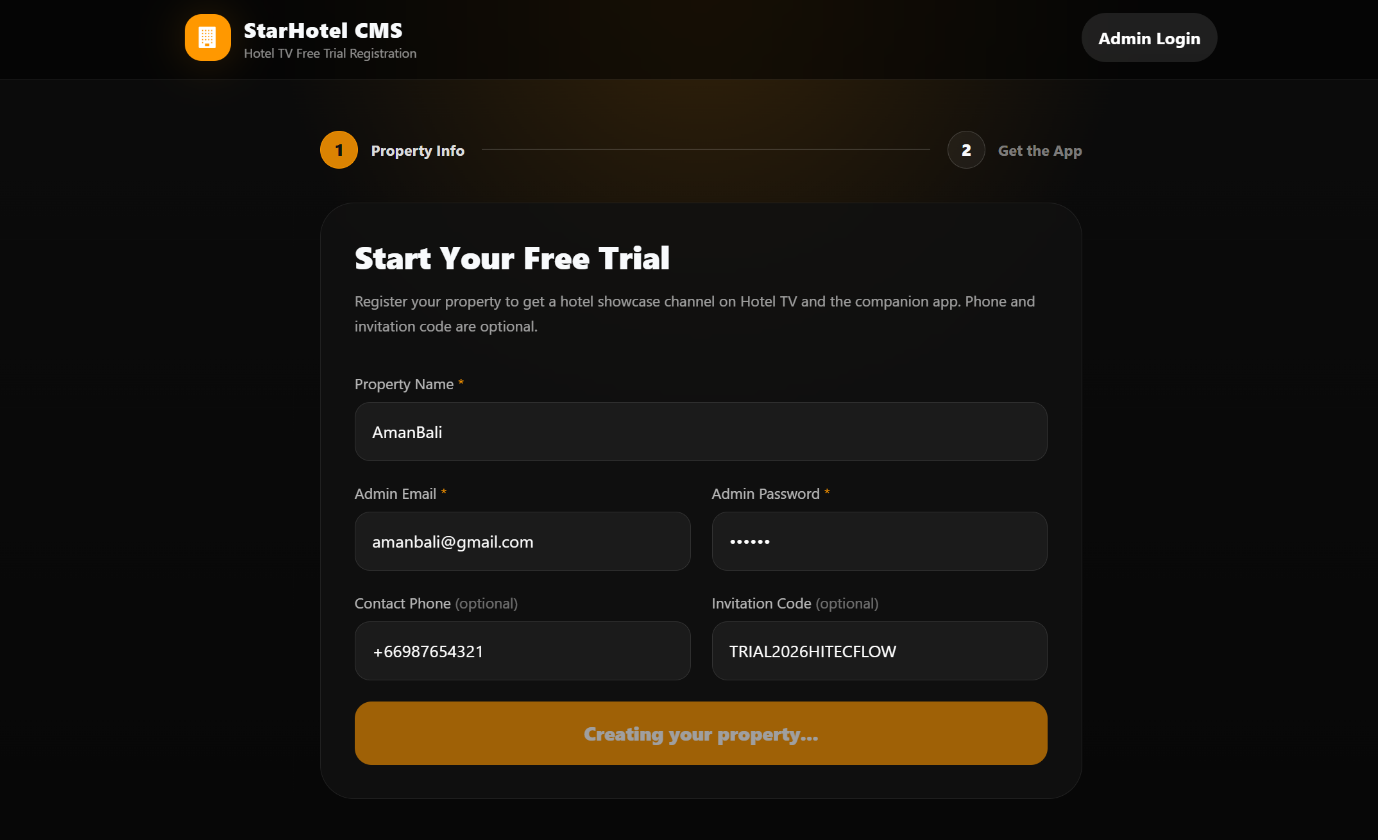
• 若提示“该 Property 已注册”:说明此名称已被占用。此时表单切换为登录模式,输入该 Property 的管理员密码,点击 Sign In & Continue 直接跳到第二步。
• If it says “This Property is already registered”: the name is taken. The form switches to login mode — enter the admin password and click Sign In & Continue to jump straight to step 2.
• Jika muncul "Properti ini sudah terdaftar": nama sudah digunakan. Form beralih ke mode login — masukkan kata sandi admin dan klik Masuk & Lanjutkan untuk langsung ke langkah 2.
• หากแจ้งว่า "Property นี้ลงทะเบียนแล้ว": ชื่อถูกใช้งานแล้ว แบบฟอร์มจะเปลี่ยนเป็นโหมดเข้าสู่ระบบ — ป้อนรหัสผ่านแอดมินและคลิก เข้าสู่ระบบและดำเนินการต่อ เพื่อข้ามไปยังขั้นตอนที่ 2 ทันที
• 若为全新 Property:后台自动执行以下动作后进入第二步。
• For a brand-new Property: the backend automatically performs the following, then proceeds to step 2.
• Untuk Properti yang benar-benar baru: backend secara otomatis melakukan hal berikut, lalu lanjut ke langkah 2.
• สำหรับ Property ใหม่ทั้งหมด: แบ็กเอนด์จะดำเนินการต่อไปนี้โดยอัตโนมัติ จากนั้นดำเนินการต่อไปยังขั้นตอนที่ 2
- 第一步提交后,后台创建一个新酒店,并以你填写的 Email + Password 作为该酒店的管理员账号;
- 若注册因网络等原因未成功,第二步会标注 “registration pending”,不会影响 CMS 账户创建;可在 CMS 设备面板重试或联系支持。
- After step 1 is submitted, the backend creates a new hotel and uses your Email + Password as that hotel’s admin account;
- If registration fails (e.g. network), step 2 will show “registration pending” — this does not affect CMS account creation. You can retry from the CMS device panel or contact support.
- Setelah langkah 1 dikirim, backend membuat hotel baru dan menggunakan Email + Password Anda sebagai akun admin hotel tersebut;
- Jika pendaftaran gagal (mis. jaringan), langkah 2 akan menampilkan "pendaftaran tertunda" — ini tidak memengaruhi pembuatan akun CMS. Anda dapat mencoba lagi dari panel perangkat CMS atau menghubungi dukungan.
- หลังส่งขั้นตอนที่ 1 แบ็กเอนด์จะสร้างโรงแรมใหม่และใช้ Email + Password ของคุณเป็นบัญชีแอดมินของโรงแรมนั้น;
- หากการลงทะเบียนล้มเหลว (เช่น เครือข่าย) ขั้นตอนที่ 2 จะแสดง "การลงทะเบียนรังรอ" — ไม่กระทบการสร้างบัญชี CMS คุณสามารถลองใหม่จากแผงอุปกรณ์ CMS หรือติดต่อฝ่ายสนับสนุน
2第二步:获取下载链接与账户信息
2Step 2: Get download link & account info
2Langkah 2: Dapatkan tautan unduhan & info akun
2ขั้นตอนที่ 2: รับลิงก์ดาวน์โหลดและข้อมูลบัญชี
进入第二步后,页面展示:
After entering step 2, the page shows:
Setelah masuk langkah 2, halaman menampilkan:
หลังเข้าสู่ขั้นตอนที่ 2 หน้าจะแสดง:
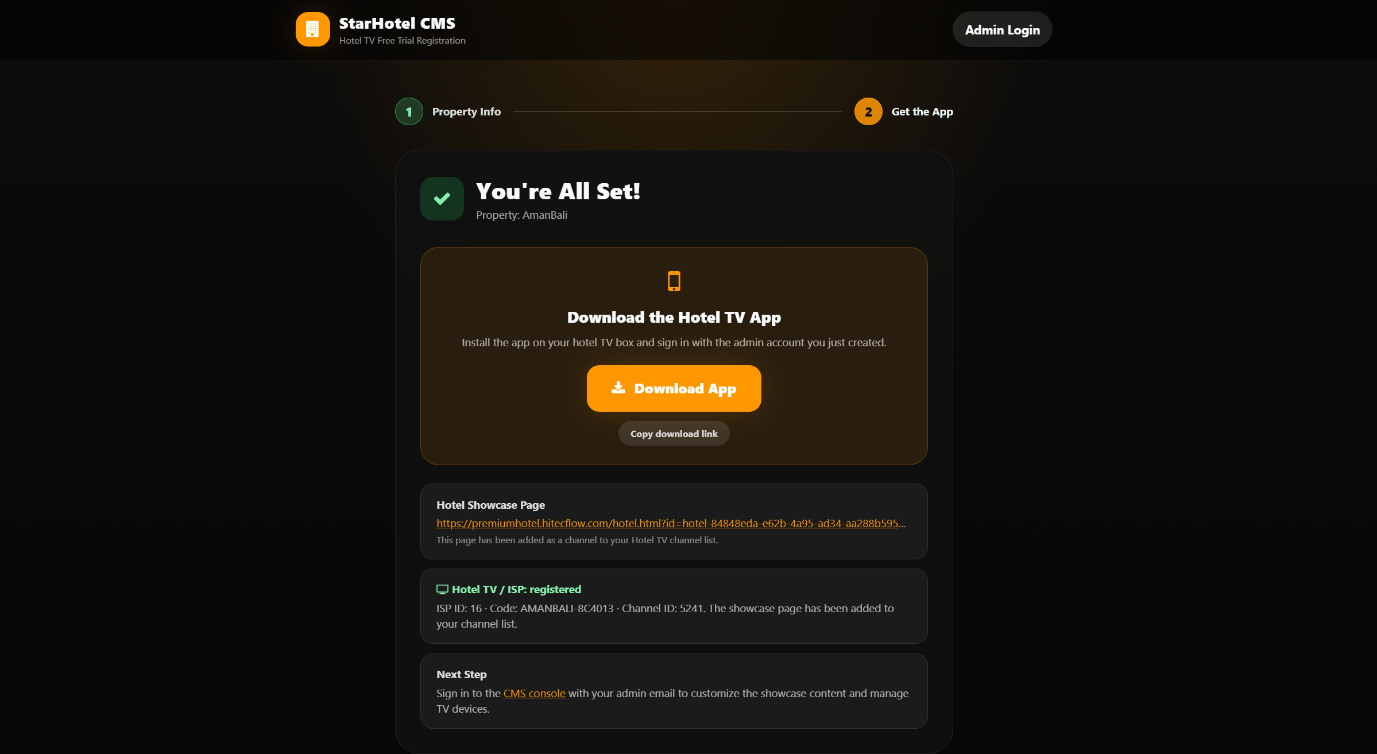
- APP 下载链接(大按钮,可点击下载或复制)—— 内含
PMS.apk与Hotel.apk两个安装包; - ISP / Hotel TV 注册状态(registered / pending);
- CMS 管理员登录入口(
https://premiumhotel.hitecflow.com)。
- APP download link (large button, click to download or copy) — contains the
PMS.apkandHotel.apkpackages; - ISP / Hotel TV registration status (registered / pending);
- CMS admin login entry (
https://premiumhotel.hitecflow.com).
- Tautan unduhan APP (tombol besar, klik untuk unduh atau salin) — berisi paket
PMS.apkdanHotel.apk; - Status registrasi ISP / Hotel TV (registered / pending);
- Entri login admin CMS (
https://premiumhotel.hitecflow.com).
- ลิงก์ดาวน์โหลดแอป (ปุ่มใหญ่ คลิกเพื่อดาวน์โหลดหรือคัดลอก) — ประกอบด้วยแพ็กเกจ
PMS.apkและHotel.apk; - สถานะการลงทะเบียน ISP / Hotel TV (registered / pending);
- ทางเข้าลงชื่อเข้าใช้งานแอดมิน CMS (
https://premiumhotel.hitecflow.com).
二、应用安装(Android 电视 / 机顶盒)
2. App Installation (Android TV / Set-top Box)
2. Instalasi Aplikasi (Android TV / Set-top Box)
2. การติดตั้งแอป (Android TV / กล่องรับสัญญาณ)
1. 下载安装包
1. Download the packages
1. Unduh paket
1. ดาวน์โหลดแพ็กเกจ
在第二步页面点击 APP 下载链接(或复制链接到浏览器打开),下载 hotel.zip 文件。解压缩后会有两个文件:PMS.apk 和 Hotel.apk。
On the step-2 page, click the APP download link (or copy the link into a browser) to download the hotel.zip file. After unzipping you get two files: PMS.apk and Hotel.apk.
Di halaman langkah 2, klik tautan unduhan APP (atau salin tautan ke browser) untuk mengunduh berkas hotel.zip. Setelah diekstrak Anda mendapat dua berkas: PMS.apk dan Hotel.apk.
ในหน้าขั้นตอนที่ 2 คลิกหรือคัดลอกลิงก์ดาวน์โหลดแอป (หรือคัดลอกลิงก์ไปเปิดในเบราว์เซอร์) เพื่อดาวน์โหลดไฟล์ hotel.zip หลังแตก zip จะได้สองไฟล์: PMS.apk และ Hotel.apk
PMS.apk—— PMS Adaptor;Hotel.apk—— 酒店电视前端应用(客房电视端)。
PMS.apk—— PMS Adaptor;Hotel.apk—— Hotel TV front-end app (in-room TV).
PMS.apk—— Adaptor PMS;Hotel.apk—— Aplikasi front-end TV hotel (TV di kamar).
PMS.apk—— ตัวปรับแต่ง PMS;Hotel.apk—— แอปฝั่งหน้าจอโทรทัศน์โรงแรม (โทรทัศน์ในห้องพัก)
2. 安装要求
2. Installation requirements
2. Persyaratan instalasi
2. ข้อกำหนดการติดตั้ง
- 设备:Android 电视或 Android 机顶盒(STB);
- 两个 APK 都必须安装到同一台设备上;
- 若设备提示“禁止安装未知来源应用”,请在系统设置中允许该来源(设置 → 安全 → 未知来源 / 安装未知应用)。
- Device: Android TV or Android set-top box (STB);
- Both APKs must be installed on the same device;
- If the device shows “installation from unknown sources blocked”, allow it in system settings (Settings → Security → Unknown sources / Install unknown apps).
- Perangkat: Android TV atau set-top box Android (STB);
- Kedua APK harus dipasang di perangkat yang sama;
- Jika perangkat menampilkan "pemasangan dari sumber tidak dikenal diblokir", izinkan di pengaturan sistem (Pengaturan → Keamanan → Sumber tidak dikenal / Instal aplikasi tidak dikenal).
- อุปกรณ์: Android TV หรือกล่องรับสัญญาณ Android (STB);
- ต้องติดตั้ง APK ทั้งสองบนอุปกรณ์เดียวกัน;
- หากอุปกรณ์แจ้ง "การติดตั้งจากแหล่งที่ไม่รู้จักถูกบล็อก" ให้อนุญาตในการตั้งค่าระบบ (การตั้งค่า → ความปลอดภัย → แหล่งที่ไม่รู้จัก / ติดตั้งแอปที่ไม่รู้จัก)
3. 在 APK 中设置酒店名称(关键)
3. Set the hotel name in the APK (critical)
3. Atur nama hotel di APK (krusial)
3. ตั้งค่าชื่อโรงแรมใน APK (สำคัญ)
- 打开
Hotel.apk(以实际界面为准),点击第一个图标,可以看到“酒店名称 / Property Name / Hotel Name”设置项; - 填入的酒店名称必须 与第一步注册的 Property Name 完全一致:同为英文、不含空格与特殊字符、大小写一致;
- 保存前扫描二维码,并将数据记录下来,后续注册设备的时候会用到;
- 其他的坑位可以选择需要展示的 APP。
- Open
Hotel.apk(actual UI may vary), tap the first icon to find the “酒店名称 / Property Name / Hotel Name” setting; - The hotel name you enter must be exactly identical to the Property Name registered in step 1: English only, no spaces/special chars, same case;
- Before saving, scan the QR code and record the data — it will be needed later when registering devices;
- Other slots let you choose which apps to display.
- Buka
Hotel.apk(UI aktual mungkin berbeda), ketuk ikon pertama untuk menemukan pengaturan "Nama Hotel / Property Name / Hotel Name"; - Nama hotel yang Anda masukkan harus persis sama dengan Property Name yang didaftarkan di langkah 1: bahasa Inggris saja, tanpa spasi/karakter khusus, huruf besar/kecil sama;
- Sebelum menyimpan, pindai kode QR dan catat datanya — akan dibutuhkan nanti saat mendaftarkan perangkat;
- Slot lain memungkinkan Anda memilih aplikasi yang akan ditampilkan.
- เปิด
Hotel.apk(UI จริงอาจแตกต่างกัน) แตะไอคอนแรกเพื่อค้นหาการตั้งค่า "ชื่อโรงแรม / Property Name / Hotel Name"; - ชื่อโรงแรมที่คุณป้อนต้อง เหมือนกันทุกประการ กับ Property Name ที่ลงทะเบียนในขั้นตอนที่ 1: เป็นภาษาอังกฤษเท่านั้น ไม่มีช่องว่างหรืออักขระพิเศษ ตัวพิมพ์เล็ก/ใหญ่ตรงกัน;
- ก่อนบันทึก ให้สแกน QR code และบันทึกข้อมูล — จะนำไปใช้เมื่อลงทะเบียนอุปกรณ์ในภายหลัง;
- ช่องอื่นๆ ให้คุณเลือกแอปที่ต้องการแสดง

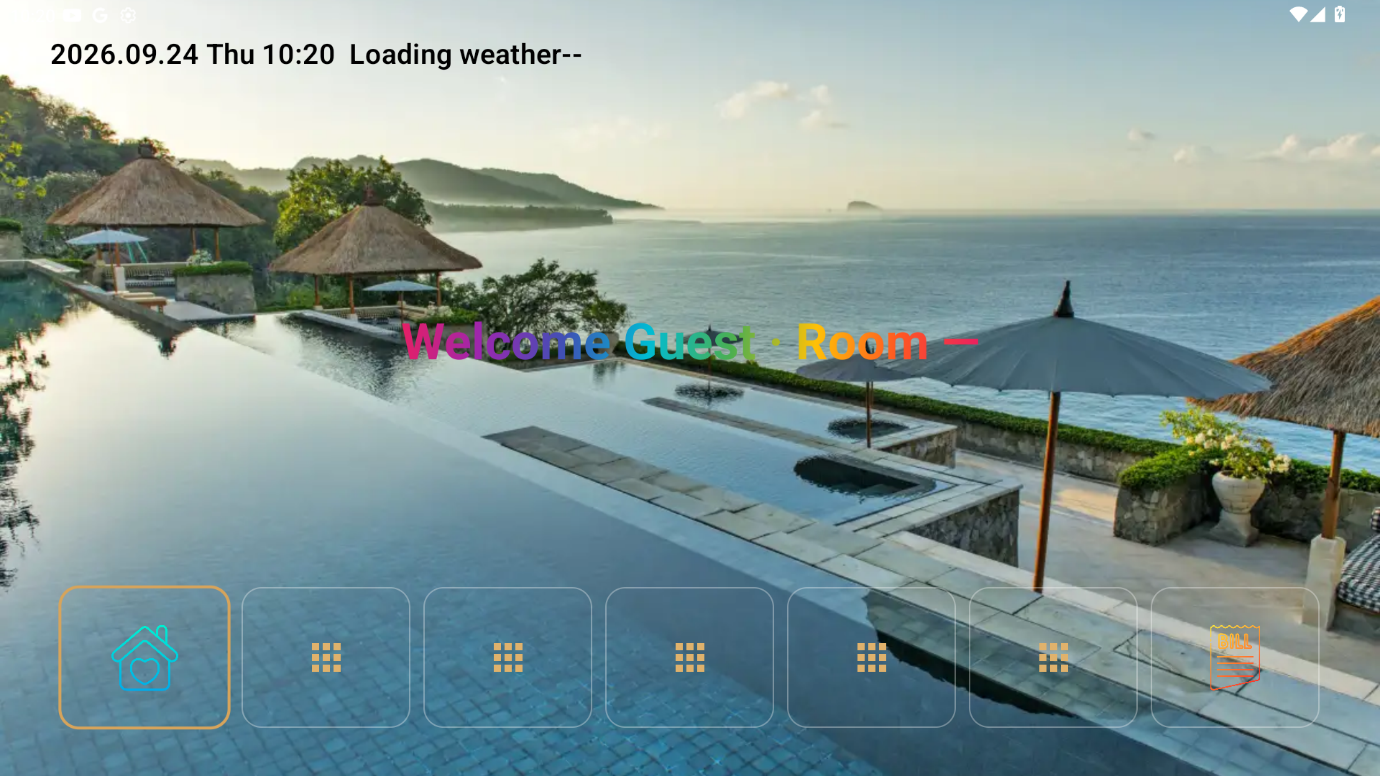
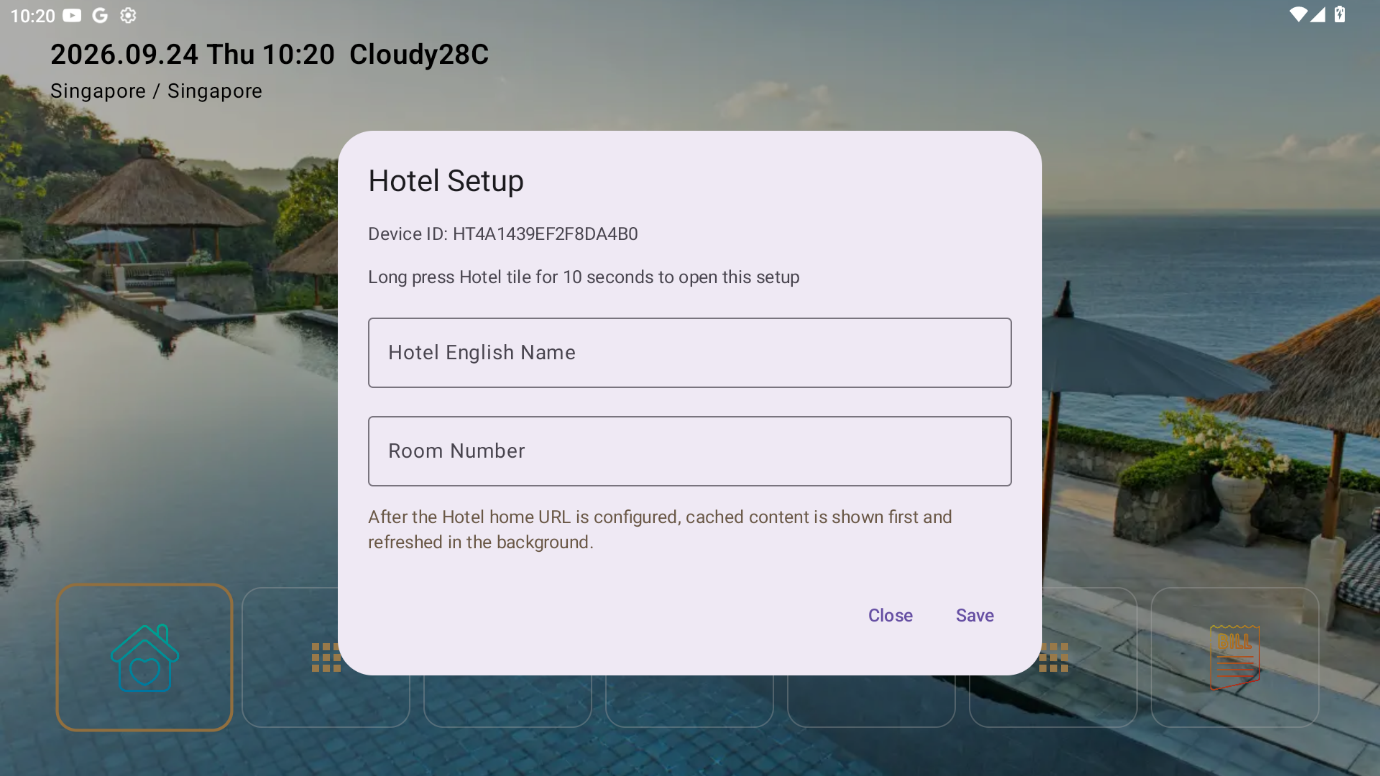
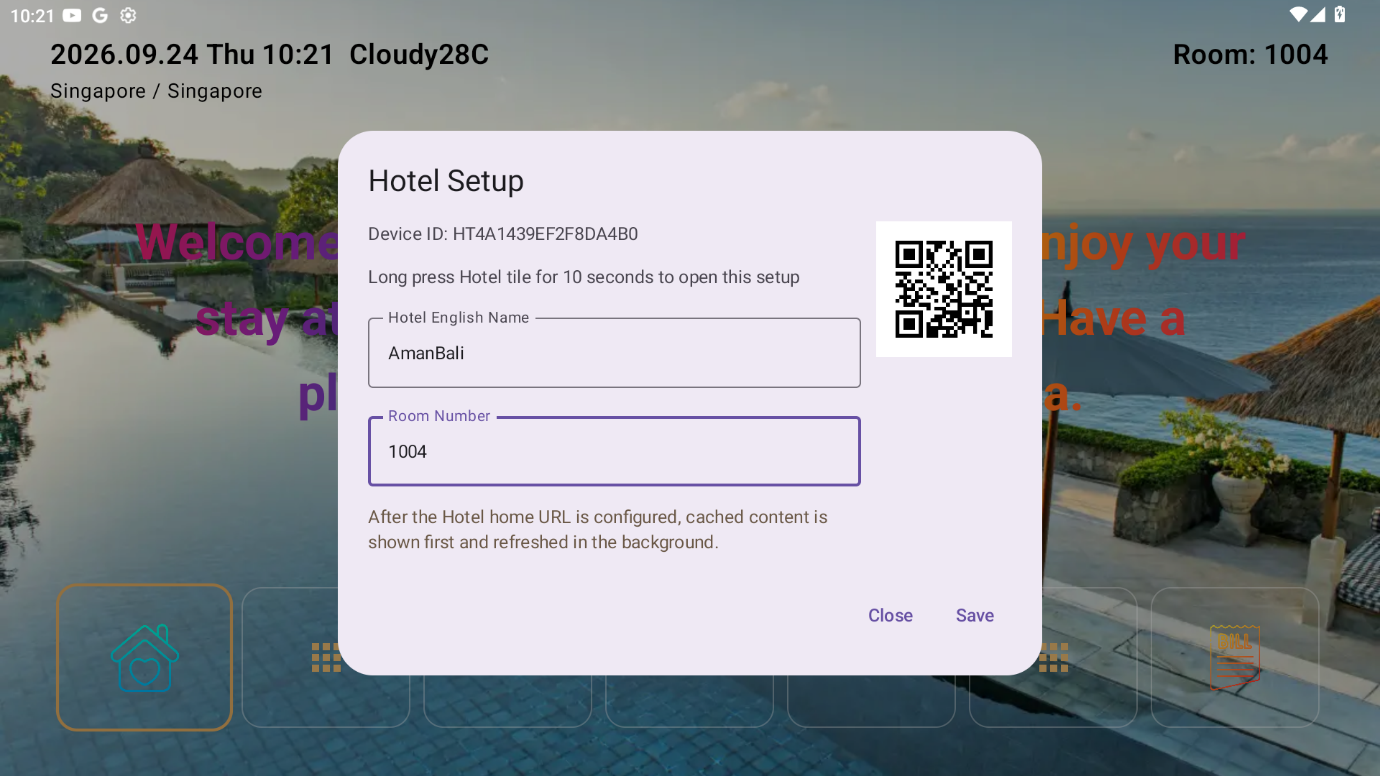
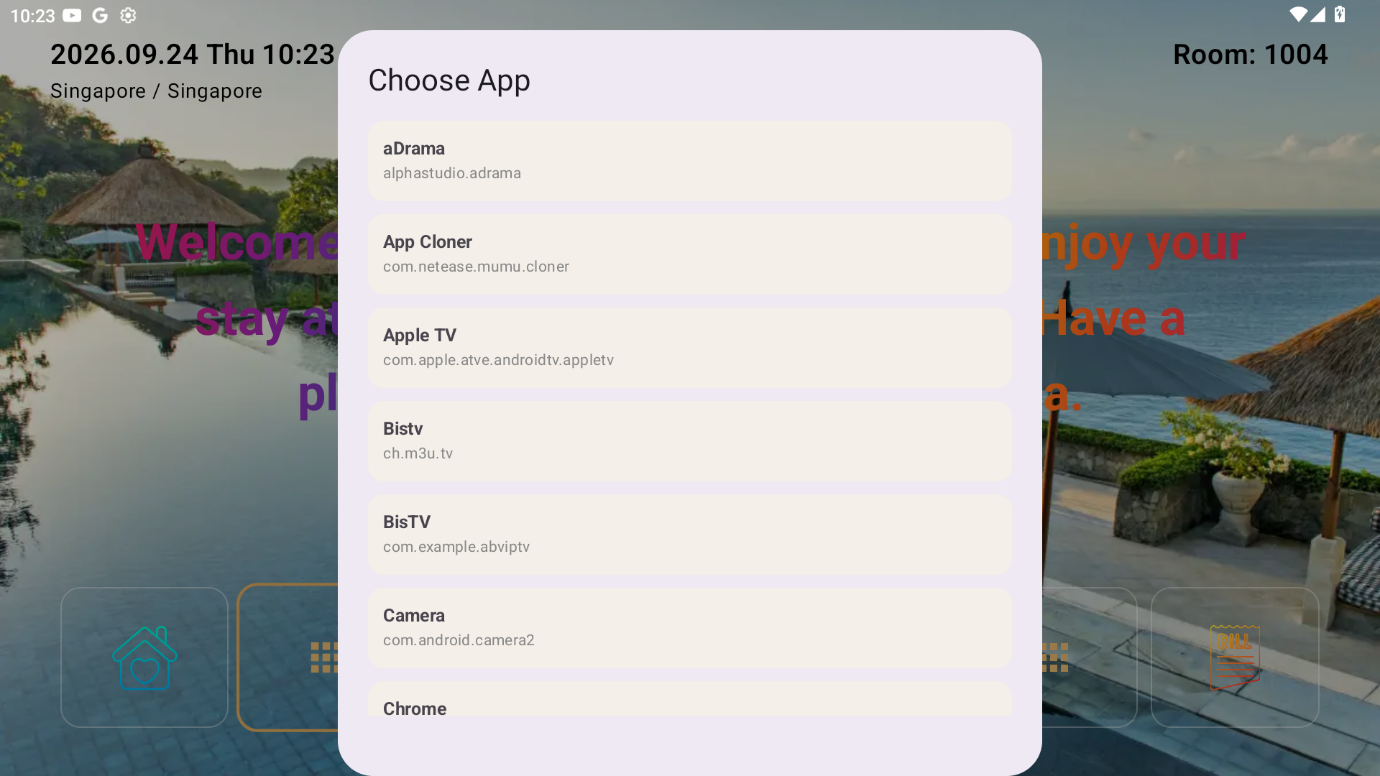
举例:第一步注册时 Property Name 填 grandhotel,则 APK 内也必须填 grandhotel,不能填 Grand Hotel、grand hotel 或 大饭店。
Example: if the Property Name in step 1 is grandhotel, the APK must also be grandhotel — not Grand Hotel, grand hotel, or 大饭店.
Contoh: jika Property Name di langkah 1 adalah grandhotel, APK juga harus grandhotel — bukan Grand Hotel, grand hotel, atau 大饭店.
ตัวอย่าง: หาก Property Name ในขั้นตอนที่ 1 คือ grandhotel APK ก็ต้องเป็น grandhotel เช่นกัน — ไม่ใช่ Grand Hotel, grand hotel, หรือ 大饭店
三、测试设备注册
3. Test Device Registration
3. Registrasi Perangkat Uji Coba
3. การลงทะเบียนอุปกรณ์ทดลอง
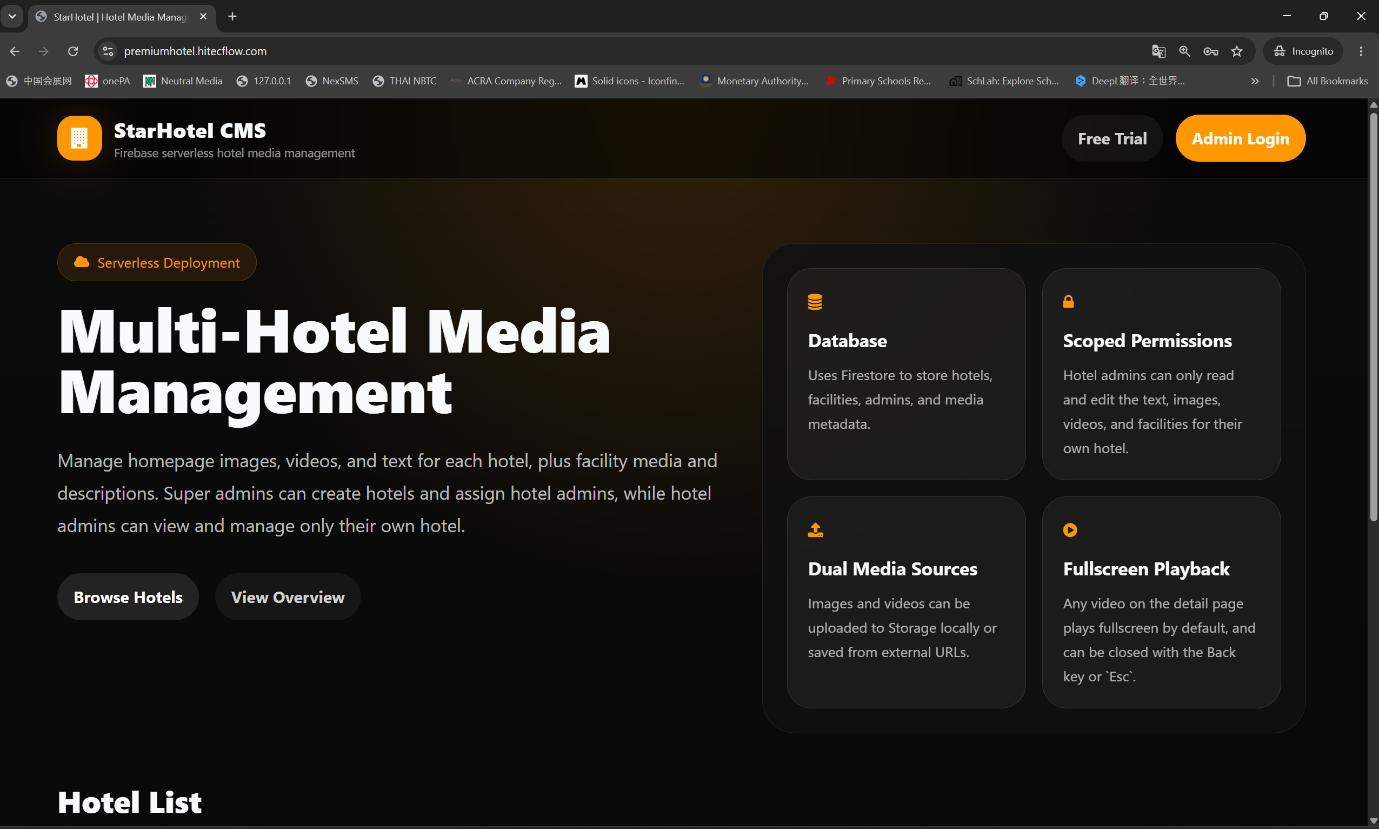
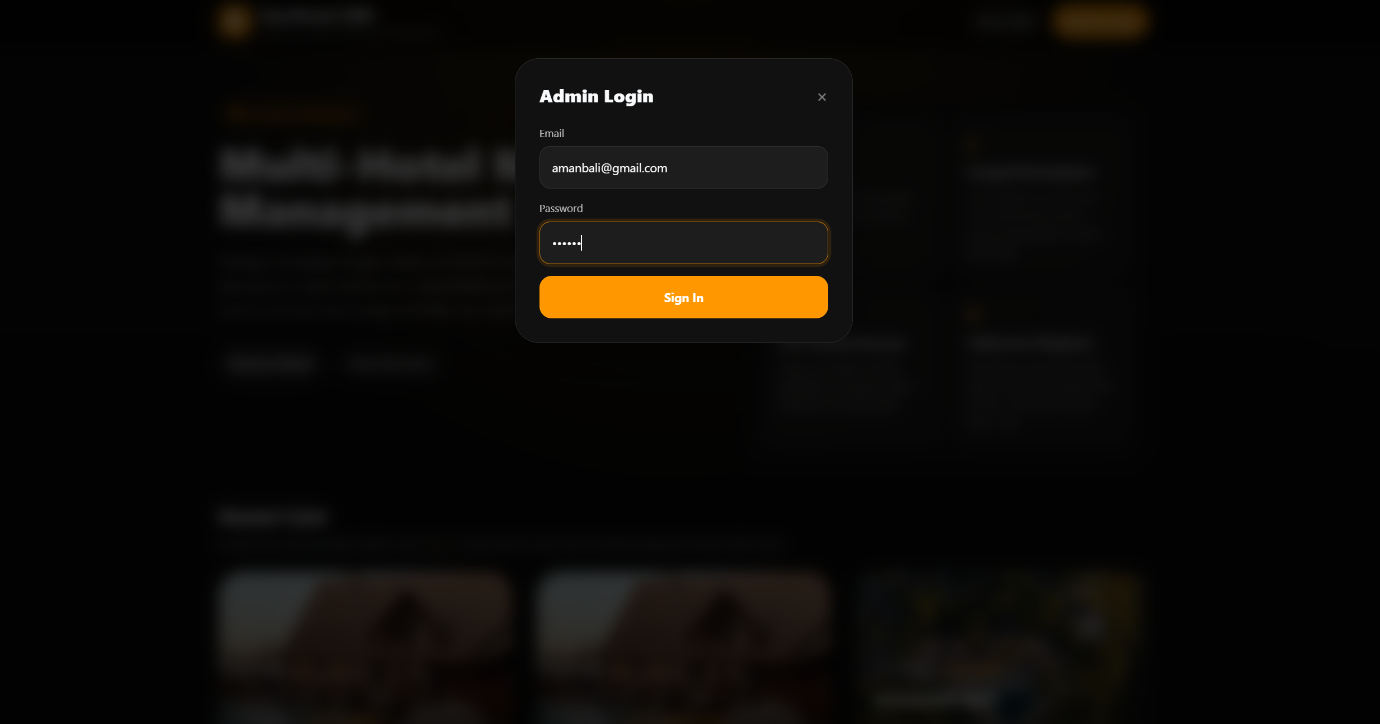
1. 登录 CMS 后台
1. Sign in to the CMS
1. Masuk ke CMS
1. เข้าสู่ระบบ CMS
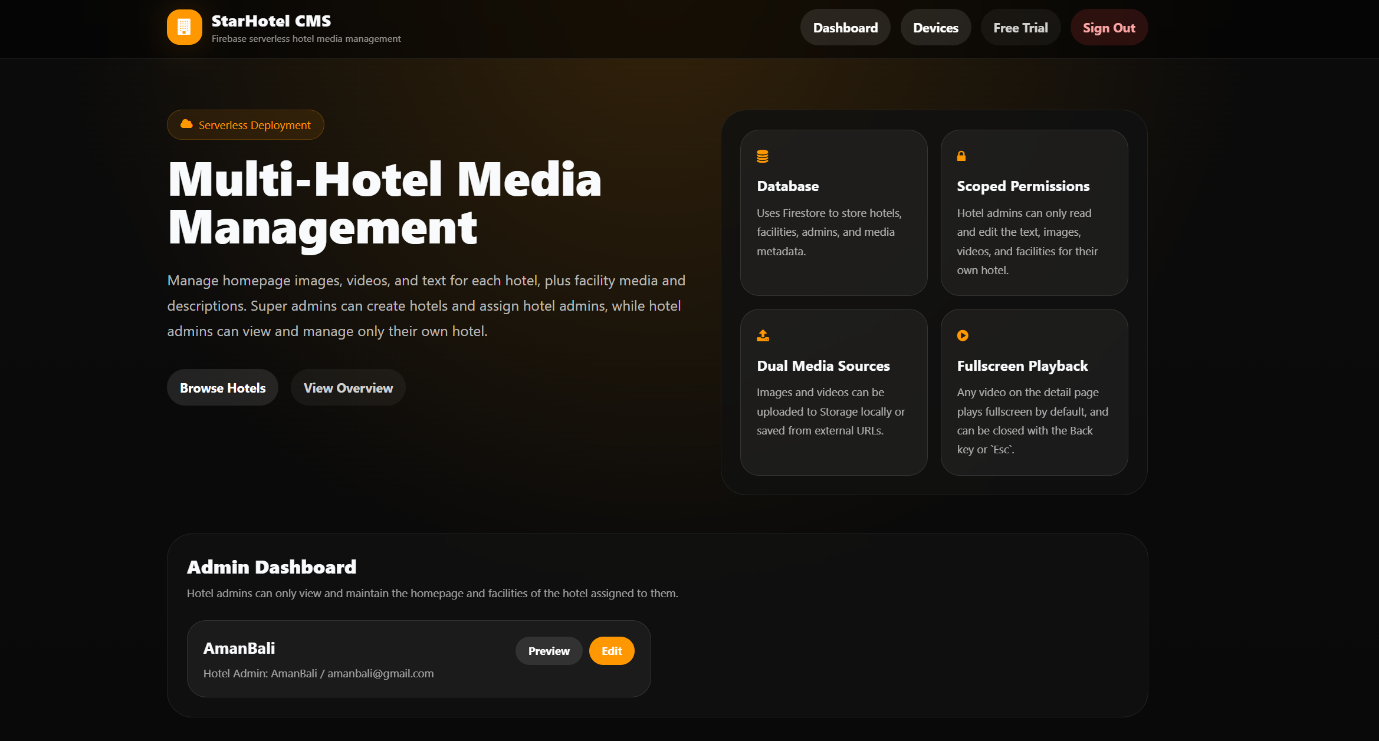
- 打开
https://premiumhotel.hitecflow.com; - 使用第一步注册的 Admin Email / Password 登录;
- 登录后顶部导航出现 Devices(设备) 按钮,点击进入设备面板。
- Open
https://premiumhotel.hitecflow.com; - Sign in with the Admin Email / Password from step 1;
- After login, a Devices button appears in the top navigation — click it to open the device panel.
- Buka
https://premiumhotel.hitecflow.com; - Masuk dengan Admin Email / Password dari langkah 1;
- Setelah masuk, tombol Perangkat muncul di navigasi atas — klik untuk membuka panel perangkat.
- เปิด
https://premiumhotel.hitecflow.com; - เข้าสู่ระบบด้วย Admin Email / Password จากขั้นตอนที่ 1;
- หลังเข้าสู่ระบบ ปุ่ม อุปกรณ์ จะปรากฏในแถบนำทางด้านบน — คลิกเพื่อเปิดแผงอุปกรณ์
2. 注册新设备
2. Register a new device
2. Daftarkan perangkat baru
2. ลงทะเบียนอุปกรณ์ใหม่
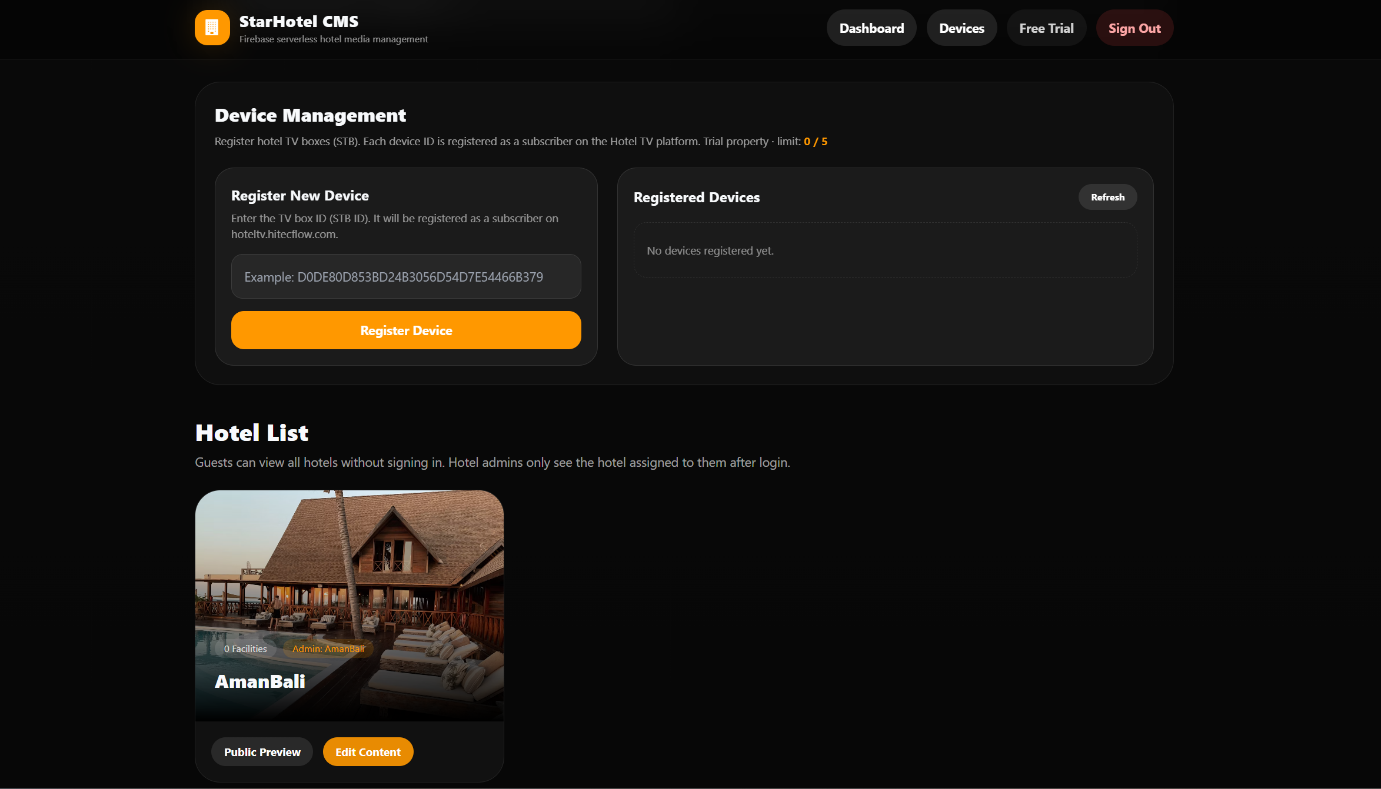
- 在 “Register New Device” 区域,输入 设备 ID(STB ID)——即机顶盒/电视的唯一标识(在电视 APP 内,扫描二维码可以获得,见下图);
- 点击 Register Device;
- 注册成功后,设备的展示名称会按 APK 内设置的酒店名称归到你的 Property 下。
- In the “Register New Device” area, enter the Device ID (STB ID) — the unique ID of the box/TV (obtained by scanning the QR code inside the TV app, see image below);
- Click Register Device;
- After success, the device is grouped under your Property by the hotel name set in the APK.
- Di area "Daftarkan Perangkat Baru", masukkan ID Perangkat (ID STB) — ID unik dari box/TV (diperoleh dengan memindai kode QR di dalam aplikasi TV, lihat gambar di bawah);
- Klik Daftarkan Perangkat;
- Setelah berhasil, nama tampilan perangkat dikelompokkan di bawah Properti Anda berdasarkan nama hotel yang diatur di APK.
- ในพื้นที่ "ลงทะเบียนอุปกรณ์ใหม่" ป้อน รหัสอุปกรณ์ (STB ID) — รหัสเฉพาะของกล่อง/โทรทัศน์ (ได้รับจากการสแกน QR code ในแอปทีวี ดูภาพด้านล่าง);
- คลิก ลงทะเบียนอุปกรณ์;
- หลังสำเร็จ ชื่อแสดงของอุปกรณ์จะถูกจัดอยู่ภายใต้ Property ของคุณตามชื่อโรงแรมที่ตั้งใน APK
3. 设备数量限制
3. Device limit
3. Batas perangkat
3. ขีดจำกัดอุปกรณ์
- 试用(Trial)Property 默认最多注册 5 台设备;
- 达到上限后再注册会提示 “Device limit reached”;
- 试用转正式用户后,可增加设备数量上限。
- A trial Property can register at most 5 devices by default;
- Once the limit is reached, further registration shows “Device limit reached”;
- After converting from trial to formal, the device limit can be raised.
- Properti uji coba dapat mendaftarkan maksimal 5 perangkat secara default;
- Setelah batas tercapai, pendaftaran lebih lanjut menampilkan "Device limit reached";
- Setelah beralih dari uji coba ke resmi, batas perangkat dapat dinaikkan.
- Property ทดลองสามารถลงทะเบียนอุปกรณ์ได้สูงสุด 5 เครื่องตามค่าเริ่มต้น;
- เมื่อถึงขีดจำกัด การลงทะเบียนเพิ่มจะแสดง "Device limit reached";
- หลังเปลี่ยนจากทดลองเป็นทางการ สามารถเพิ่มขีดจำกัดอุปกรณ์ได้
4. 设备列表
4. Device list
4. Daftar perangkat
4. รายการอุปกรณ์
设备面板右侧 “Registered Devices” 展示已注册设备的 ID、注册时间、套餐(trial/formal)及 ISP 状态(ISP OK / ISP pending);点击 Refresh 可刷新列表。
The “Registered Devices” panel on the right shows each device’s ID, registration time, plan (trial/formal) and ISP status (ISP OK / ISP pending); click Refresh to update the list.
Panel "Registered Devices" di sebelah kanan menampilkan ID, waktu registrasi, paket (trial/resmi) dan status ISP (ISP OK / ISP pending) setiap perangkat; klik Segarkan untuk memperbarui daftar.
แผง "Registered Devices" ด้านขวาแสดง ID เวลาลงทะเบียน แพ็กเกจ (trial/resmi) และสถานะ ISP (ISP OK / ISP pending) ของแต่ละอุปกรณ์; คลิก รีเฟรช เพื่ออัปเดตรายการ
5. 酒店页面设计
5. Hotel page design
5. Desain halaman hotel
5. การออกแบบหน้าโรงแรม
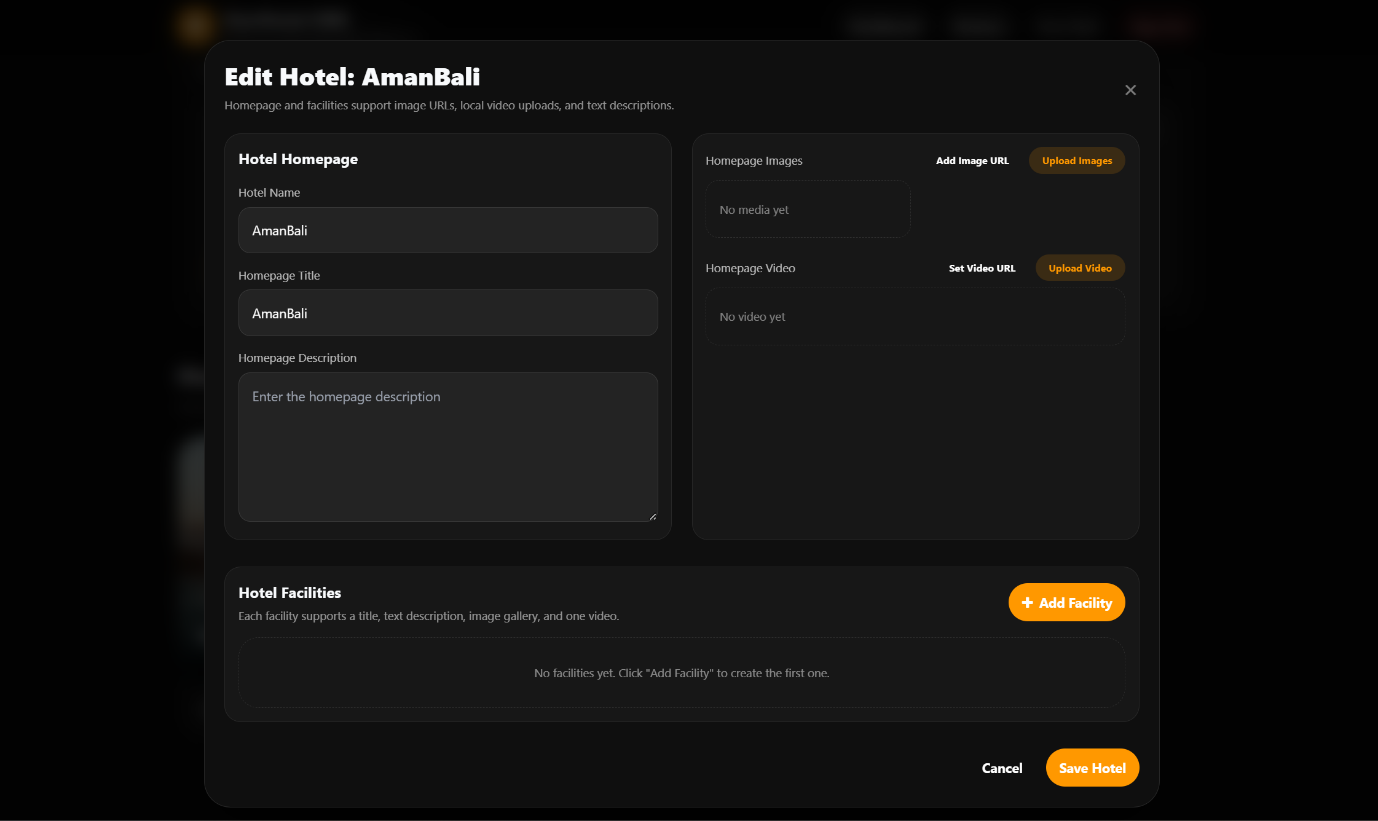
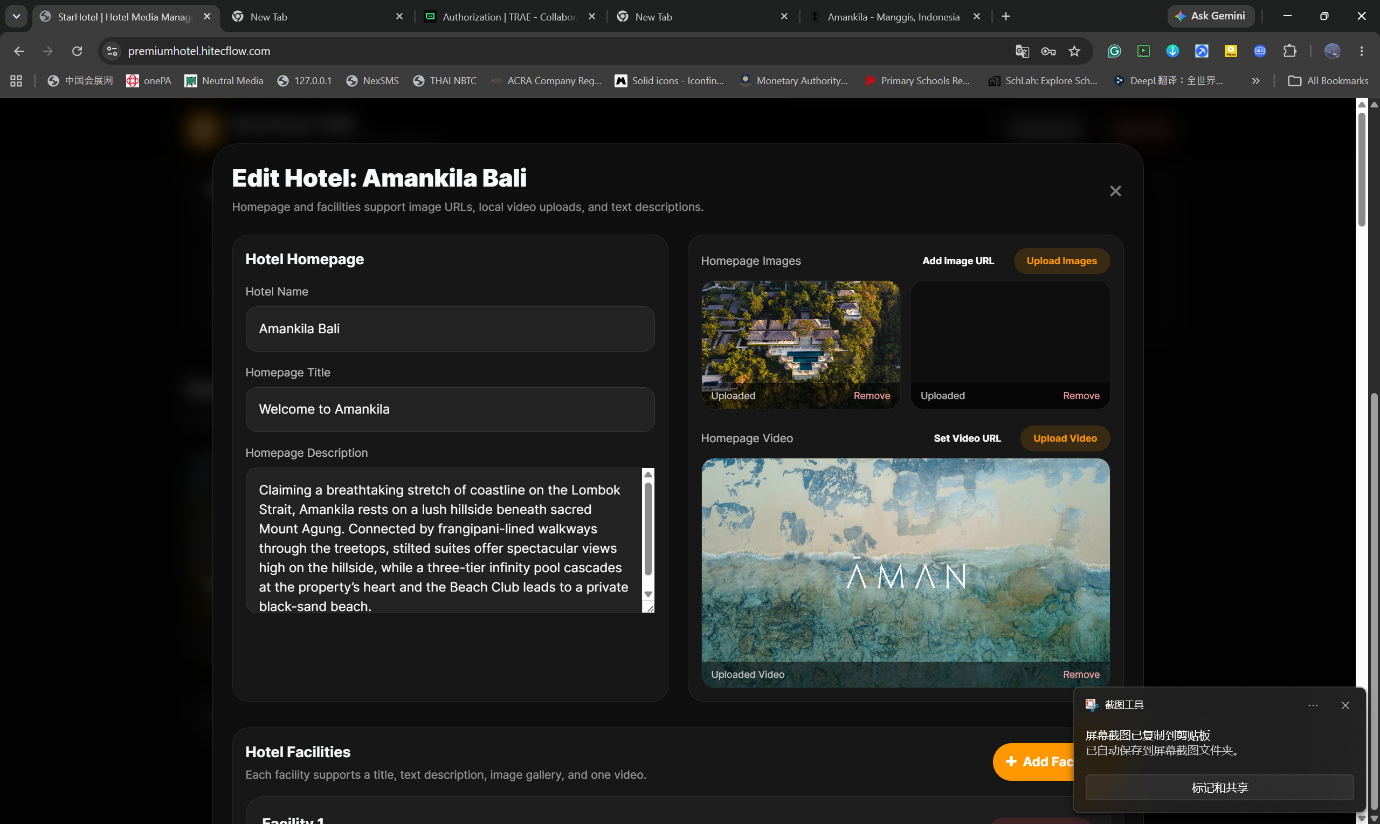
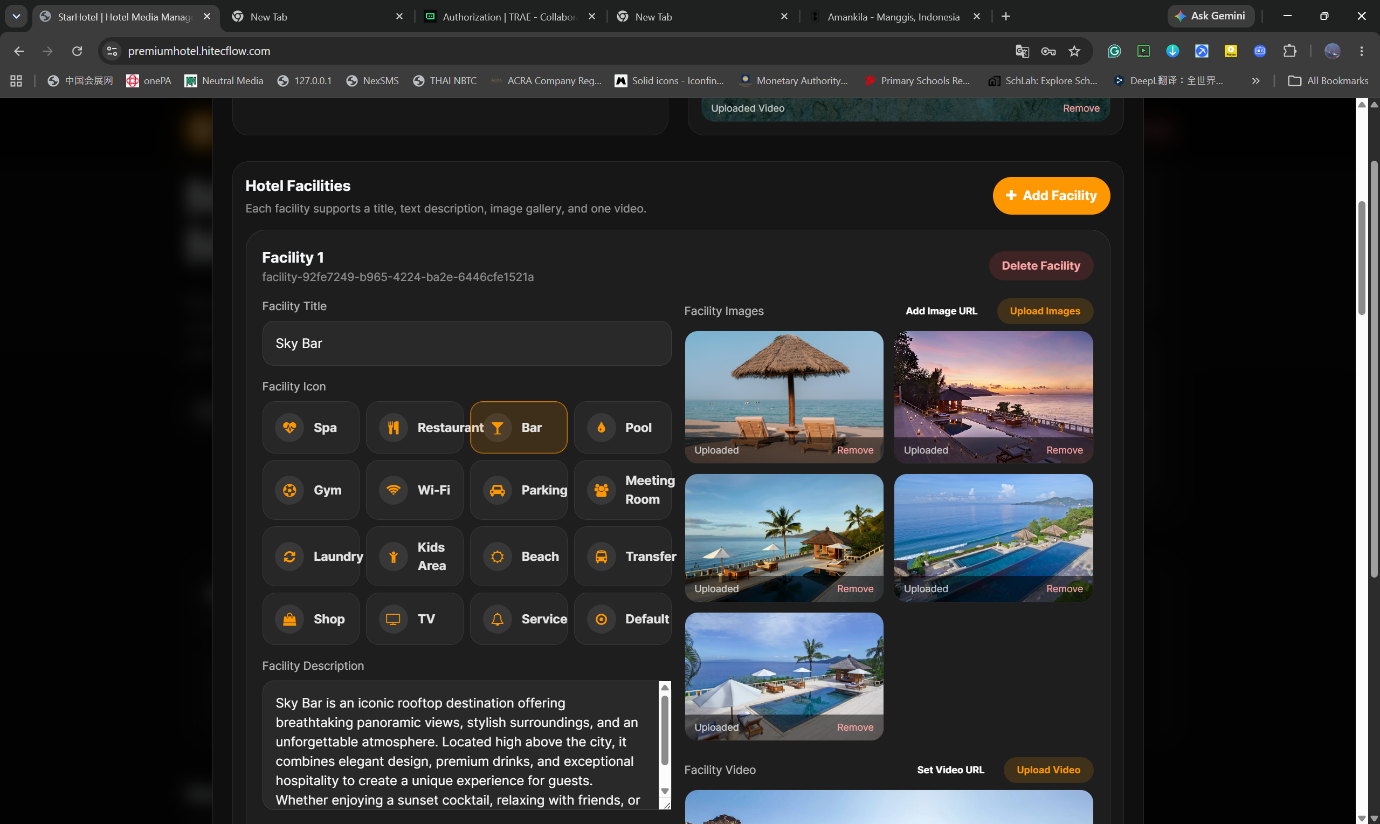
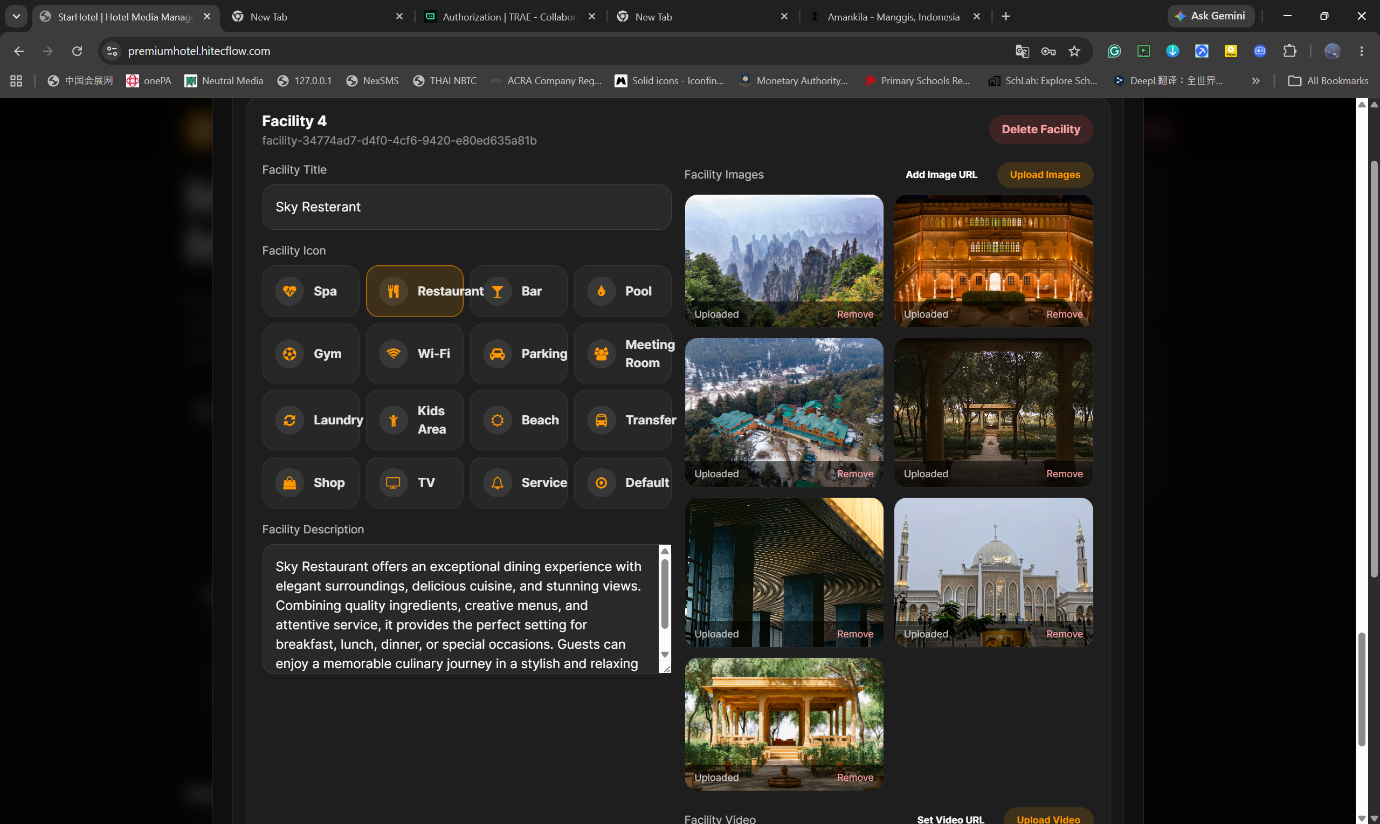
在 CMS 后台可编辑酒店的展示页面(首页标题、介绍、图片、设施等)。注册完成后即可登录后台进行个性化设置。
In the CMS you can edit the hotel’s showcase page (home title, intro, images, facilities, etc.). After registration, sign in to personalize it.
Di CMS Anda dapat menyunting halaman showcase hotel (judul beranda, intro, gambar, fasilitas, dll.). Setelah registrasi, masuk untuk mempersonalisasinya.
ใน CMS คุณสามารถแก้ไขหน้าโชว์เคสโรงแรม (ชื่อหน้าหลัก คำแนะนำ รูปภาพ สิ่งอำนวยความสะดวก ฯลฯ) หลังลงทะเบียน ให้เข้าสู่ระบบเพื่อปรับแต่ง
四、常见问题
4. FAQ
4. FAQ
4. คำถามที่พบบ่อย
联系方式 / Contact: WhatsApp:+65 9628 8087 | 邮箱 / Email:henry@hitecflow.com
Contact: WhatsApp: +65 9628 8087 | Email: henry@hitecflow.com
Kontak: WhatsApp: +65 9628 8087 | Email: henry@hitecflow.com
ติดต่อ: WhatsApp: +65 9628 8087 | Email: henry@hitecflow.com
五、信息核对清单(申请前确认)
5. Pre-application Checklist
5. Daftar Periksa Pra-pendaftaran
5. รายการตรวจสอบก่อนลงทะเบียน
- Property Name 为英文、无空格、无特殊字符(建议纯小写字母数字)
- 计划在 APK 中填入的酒店名称 = 上述 Property Name(逐字符一致)
- Admin Email 可用且能接收(用于登录 CMS)
- Admin Password ≥ 6 位
- 已准备好 Android 电视 / STB 用于安装与测试
- (如适用)已获取邀请码
- Property Name is English, no spaces, no special chars (prefer lowercase letters/digits)
- The hotel name to be entered in the APK = the Property Name above (character-for-character)
- Admin Email is valid and reachable (used to sign in to CMS)
- Admin Password ≥ 6 characters
- An Android TV / STB is ready for installation and testing
- (If applicable) Invitation code obtained
- Property Name berbahasa Inggris, tanpa spasi, tanpa karakter khusus (sebaiknya huruf/angka kecil)
- Nama hotel yang akan dimasukkan ke APK = Property Name di atas (karakter demi karakter)
- Admin Email valid dan dapat dihubungi (digunakan untuk masuk ke CMS)
- Admin Password ≥ 6 karakter
- Android TV / STB siap untuk instalasi dan pengujian
- (Jika berlaku) Kode undangan diperoleh
- Property Name เป็นภาษาอังกฤษ ไม่มีช่องว่าง ไม่มีอักขระพิเศษ (แนะนำตัวพิมพ์เล็ก/ตัวเลข)
- ชื่อโรงแรมที่จะป้อนใน APK = Property Name ข้างต้น (ตรงกันทุกตัวอักษร)
- Admin Email ใช้งานได้และรับข้อความได้ (ใช้เข้าสู่ระบบ CMS)
- Admin Password ≥ 6 ตัวอักษร
- Android TV / STB พร้อมสำหรับติดตั้งและทดสอบ
- (หากเกี่ยวข้อง) ได้รับรหัสเชิญแล้ว
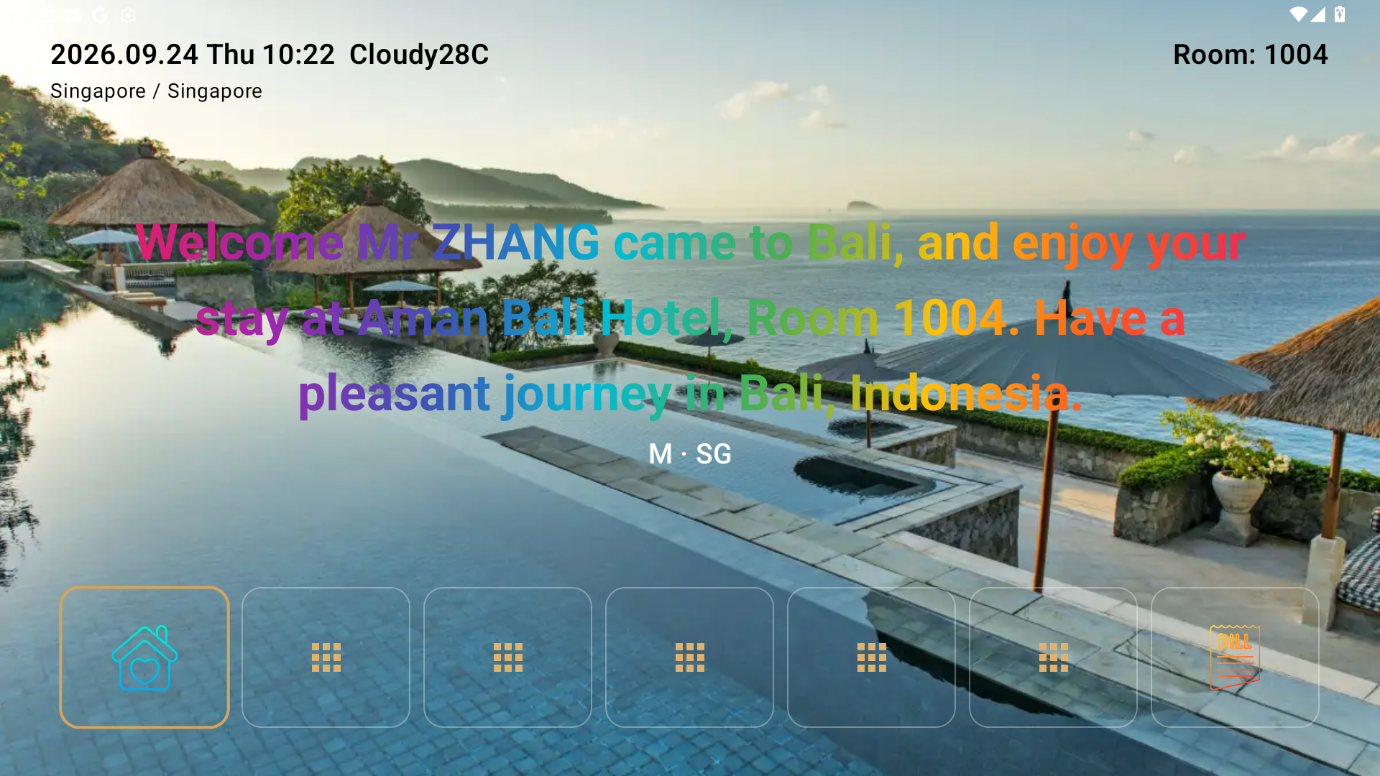
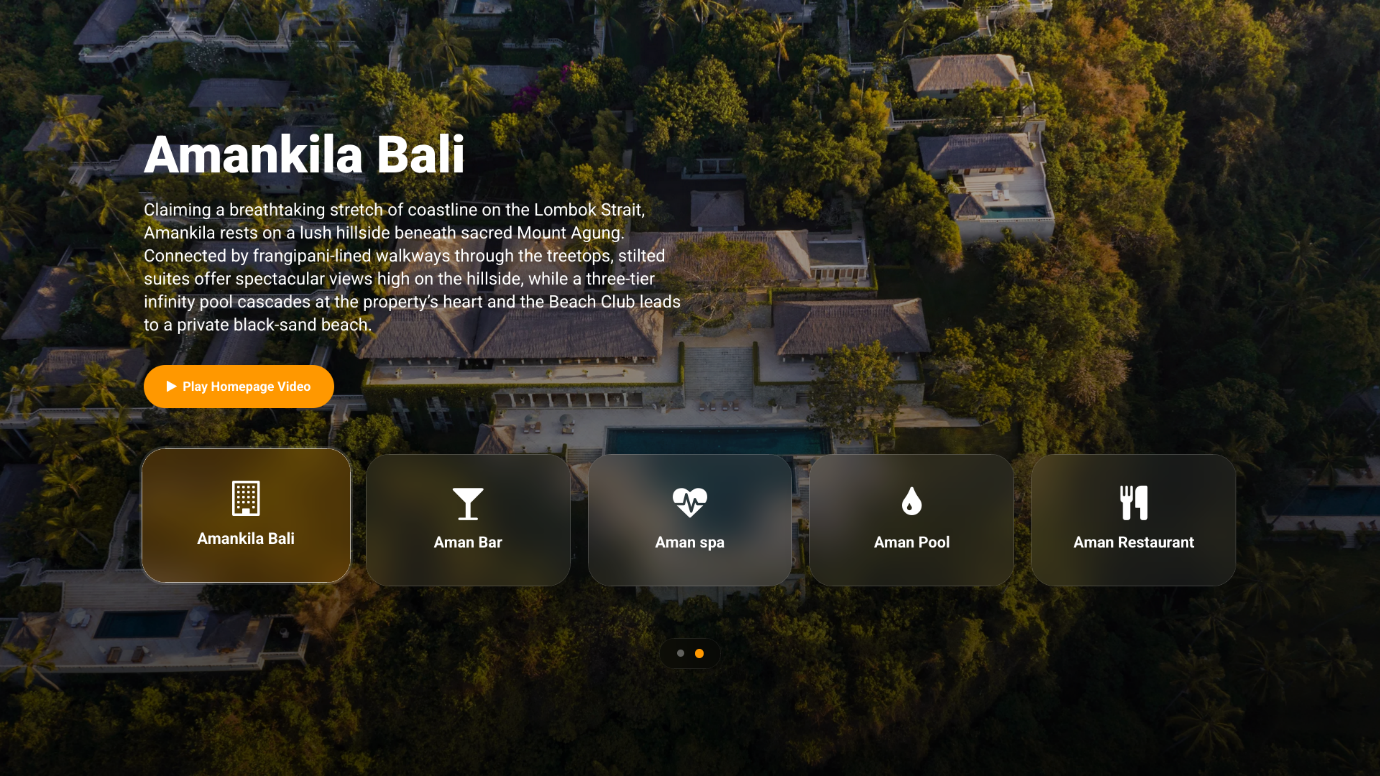
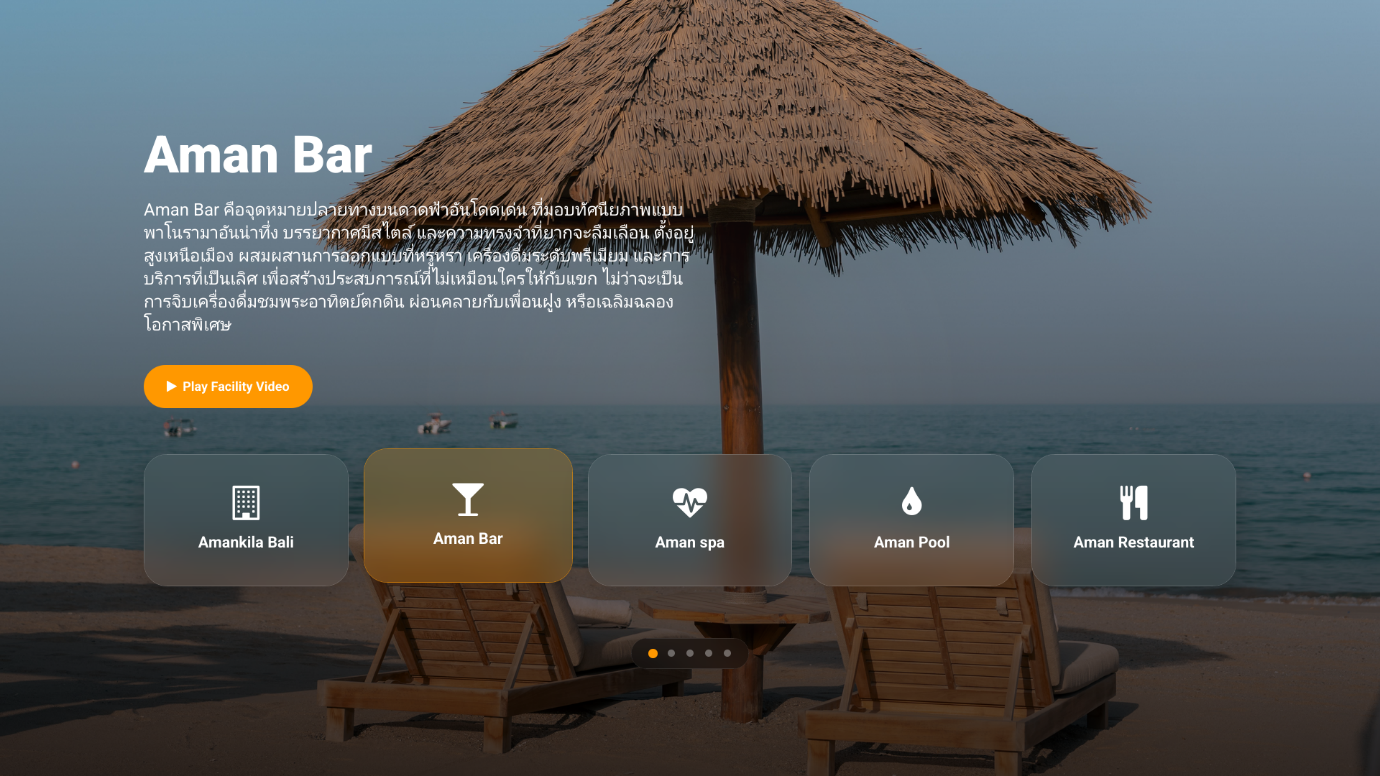
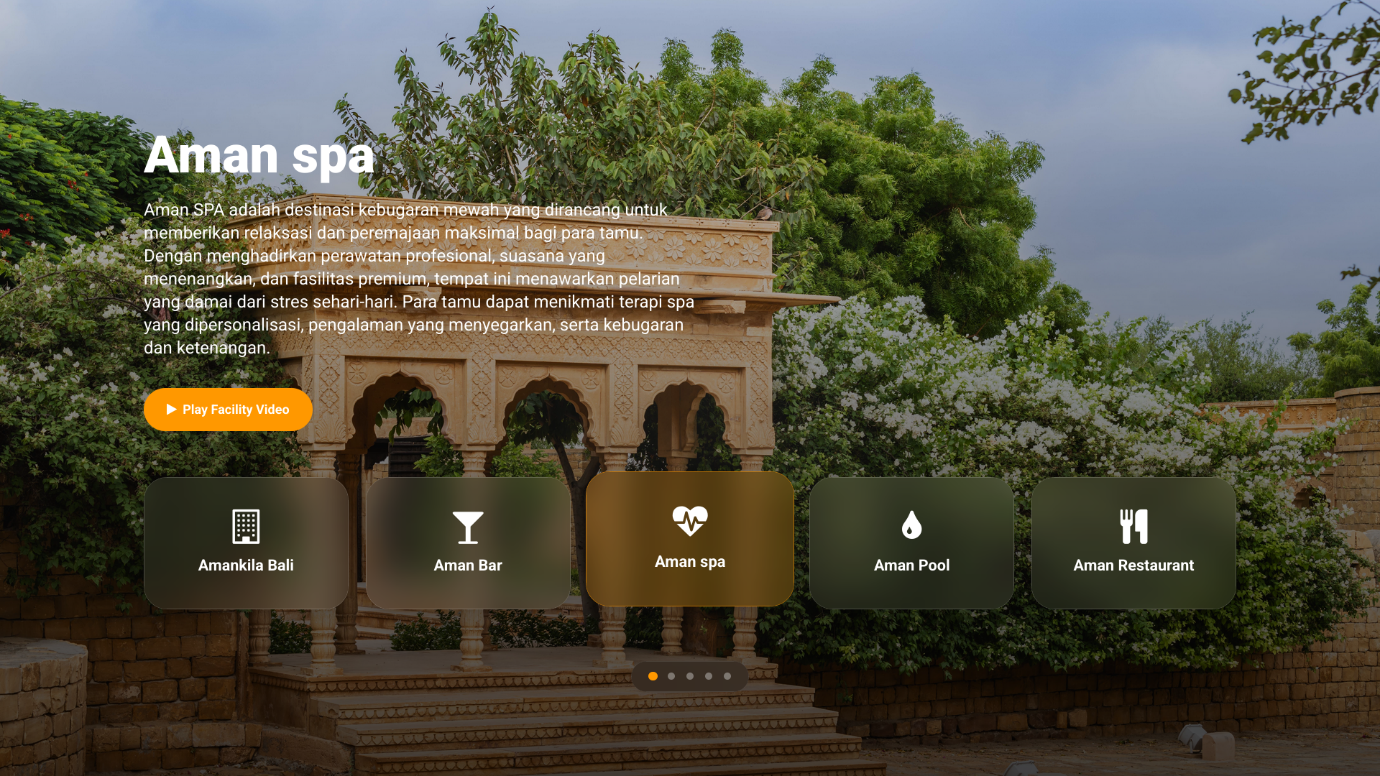
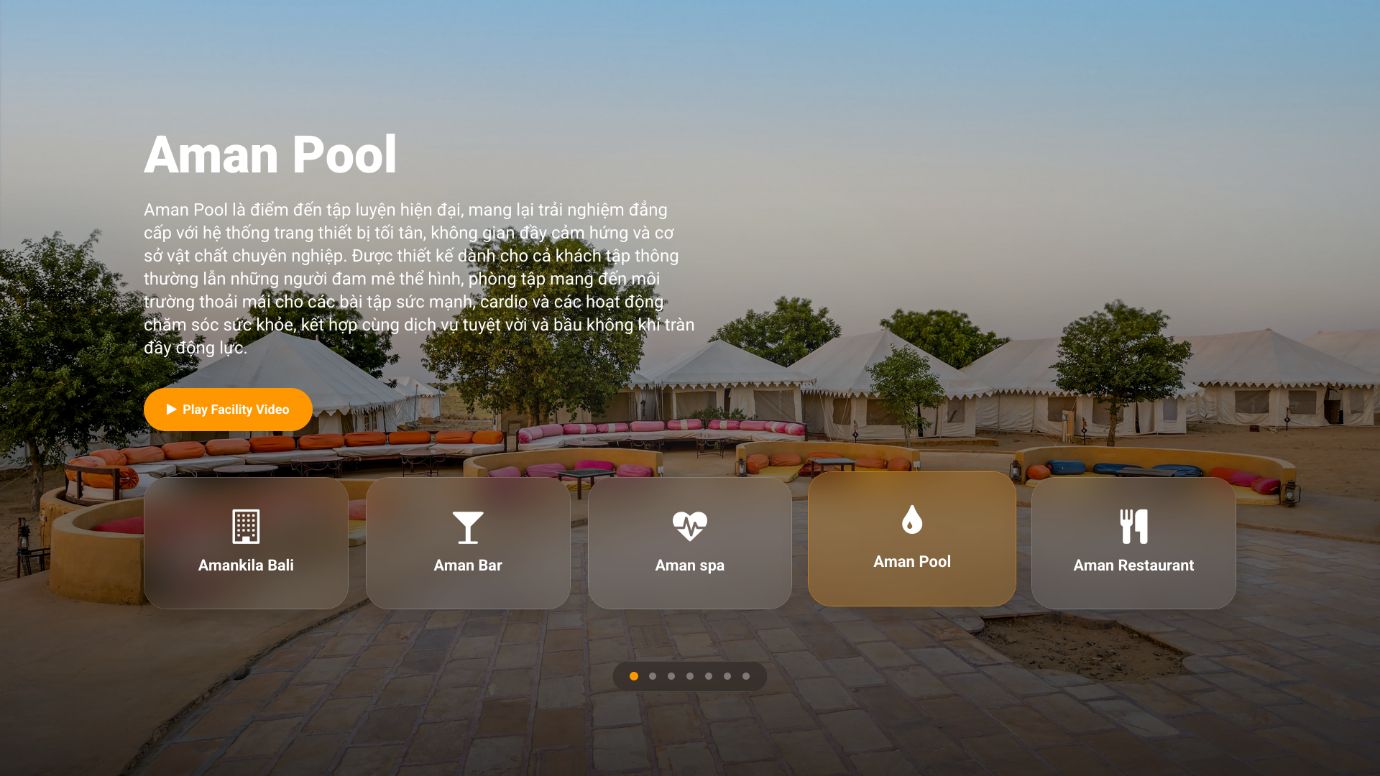
电视端最终效果
Final TV effect
Efek TV akhir
ผลลัพธ์ทีวีสุดท้าย